
Configure SteamCMD, updates, and desktop prefs in YARK Settings
SteamCMD
Section titled “SteamCMD”Set the path to the folder that contains steamcmd.exe. This is the most important setting — without it, install/update/verify cannot run.
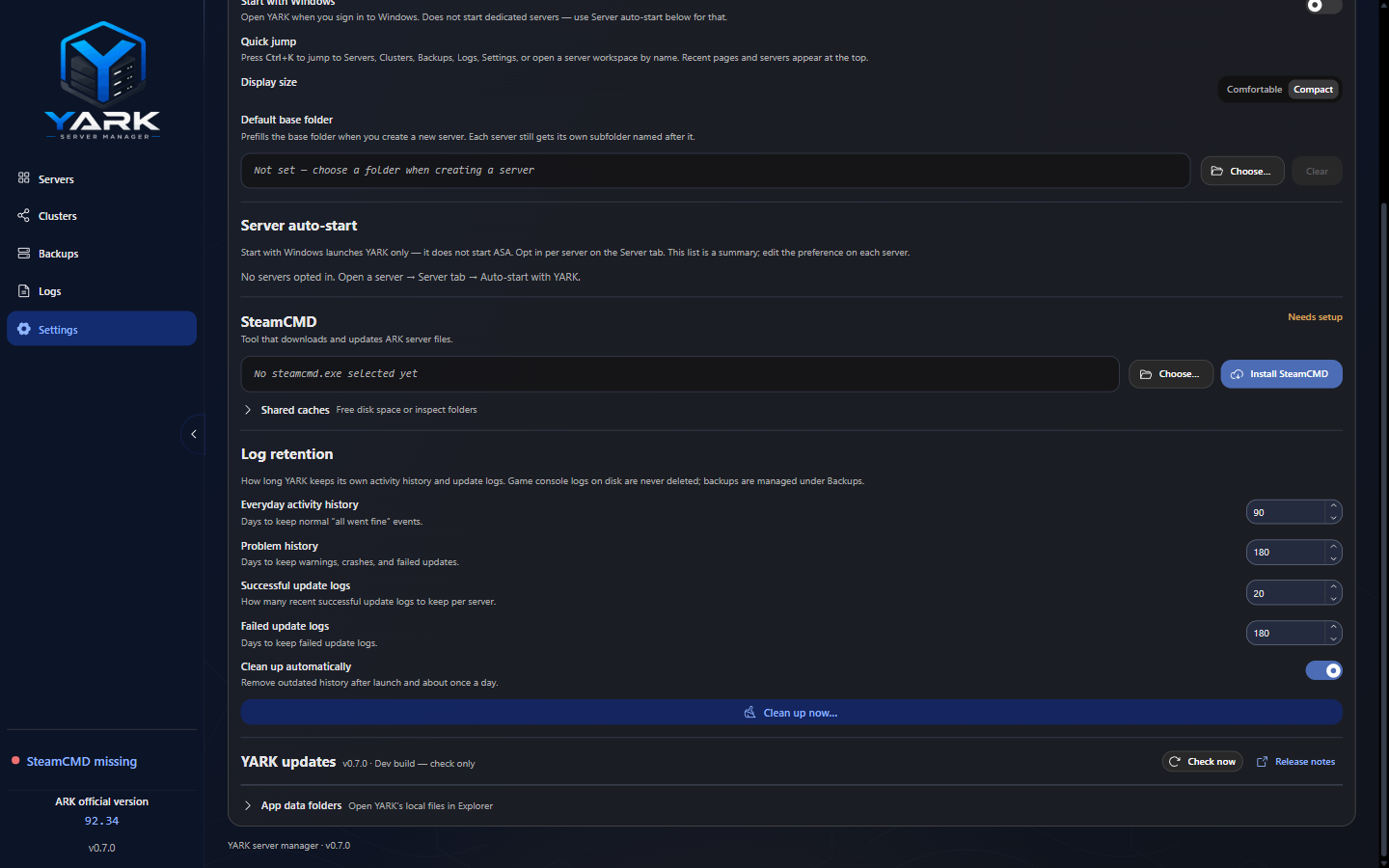
Settings — app-wide preferences by category, plus the setup assistant entry point.
Changing the SteamCMD path resets content-cache freshness tracking so the next install does not reuse a stale “fresh” flag from the previous home.
Desktop shell (Windows)
Section titled “Desktop shell (Windows)”- Close window to tray (default on) — hide to the system tray instead of quitting; tray menu and the sidebar footer Quit YARK control both exit for real
- Desktop alerts (default on) — Windows notifications for the nested categories below. Server crash, Installs and updates, YARK updates, and Hide to tray turn each category off. Click a crash alert to open that server’s log; click an install/update alert to open Downloads; click a YARK update alert to open Settings → About. Hide to tray only appears if Close window to tray is on.
- Start with Windows (default off) — open YARK at sign-in; does not auto-start dedicated servers
When you explicitly quit while servers are active, YARK always asks you to Stop them or Cancel the quit. Use Close window to tray when you want the window hidden while YARK and its managed servers keep running. Attach/reattach is reserved for crash recovery or forced closes; there is no normal “leave servers running and quit YARK” option.
Default base folder
Section titled “Default base folder”Optional convenience when creating new profiles (where you tend to place installs). Each profile still stores its own absolute installDir.
Appearance
Section titled “Appearance”Display size (compact vs comfortable), Theme family (Fluent, Plasma Breeze, or Glassy), Color scheme (dark or light for that family), and Server panels (auto or drawers) all live in Settings -> Appearance. Each applies the moment you change it - nothing needs a restart - and the choice is remembered across restarts. None of them change dedicated-server behavior.
Background image, shown only for Glassy, turns the day or night scene off. The glass panels stay. The switch is remembered, and a missing value stays on.
Windows High Contrast: YARK follows forced-colours mode, so surfaces, text and controls take the system palette, the focus ring uses Highlight, and separation comes from borders instead of fills rather than from brand colour.
Reduced motion: with the Windows animation preference set to off, transitions collapse and the ambient pulses in the sidebar stop.
Setup assistant
Section titled “Setup assistant”Use Open setup assistant under General to review SteamCMD, server-folder, and Windows options. The Windows step includes display size, theme family, and color scheme, the same choices as Appearance. With an empty fleet it also offers an optional cluster and the first create/import action. Path and Windows changes save as you go; closing the assistant does not undo them.
Log retention
Section titled “Log retention”Log retention controls how long YARK keeps YARK-owned event history and SteamCMD update logs. Day fields accept 1–3650 days. ASA runtime logs under the install folder are not deleted by this policy. Configure retention and run a manual cleanup preview from Settings; see Logs & diagnostics.
Server auto-start summary
Section titled “Server auto-start summary”Settings lists profiles that opted into Auto-start with YARK. Turn the preference on or off on each server’s Server tab (Startup). Auto-start is separate from Start with Windows.
Discord webhooks
Section titled “Discord webhooks”Optional one-way notifications to a Discord channel. The master switch defaults off; seven event filters are available (server ready, clean stop, closed by user, unexpected crash, and SteamCMD job start / success / failure). Identical events for the same server have a two-minute cooldown.
- The webhook URL is stored in local SQLite, shown as a password field, never
included in YARK logs or delivery errors, and sent only to
https://discord.com/api/webhooks/.... - Each event can use a custom message template with
{server}and (for SteamCMD events){detail}placeholders; empty templates keep the built-in copy. Mentions stay disabled. - Send test posts a notification using the focused field’s template.
- Delivery runs only while YARK is running; there is no bot and no remote command channel — Discord cannot control YARK.
YARK updates
Section titled “YARK updates”YARK updates checks GitHub Releases for a newer desktop build (not ASA/SteamCMD). After launch, YARK quietly checks in the background; when an update is available (or a download finishes), you get an operator toast and the sidebar version uses an accent color — click either to open Settings → About. Then Check now → Download → Restart and install. Install is blocked while servers or critical jobs are busy. Unpackaged/dev builds can check but cannot install. If a mid-publish race leaves latest.yml missing, quiet checks stay silent and Check now falls back to GitHub Releases or a short retry message.
What’s new (same notes as the public changelog) opens once after you upgrade to a version that has curated notes. Open it anytime from Settings → About, or by clicking the sidebar vX.Y.Z label (the update badge still opens About). This version lists the installed release; Earlier releases expands one version at a time.
Third-party notices on About opens the GitHub THIRD_PARTY_NOTICES.md for Arkobat INI templates, ark.wiki.gg launch-options catalog sources, and bundled map thumbnails.
Community on About links to the public GitHub repo and the YARK Discord (opens in your browser via the allowlisted host list).
What stays local
Section titled “What stays local”Profiles, settings, events, and backup metadata live in local SQLite under the app userData folder (on Windows typically under %APPDATA%). There is no YARK cloud account. Server/admin credentials are local too; review the current storage and backup boundary before sharing app data or INI files.
See Security & privacy.
Profile database recovery
Section titled “Profile database recovery”The profile SQLite file is yark-server-manager.db under App data (open that folder from Settings → About). On open, YARK waits briefly for a lock so a short contention does not fail boot immediately.
If the database cannot open or migrate, boot shows a recovery dialog instead of a blank window:
- Open folder — inspect or copy the DB (and related WAL/SHM files) from App data
- Quit — exit without changing files
- Start empty… — YARK does not repair the file; it renames the broken DB + WAL/SHM as
*.corrupt.<timestamp>and continues with a blank database
ASA installs on disk are not deleted. You will need to re-add profiles if you start empty.